User Guide for CHM MTD ITSA Bridging Software
CHM Bridging Software will file ITSA returns under Making Tax Digital.
You are a few minutes away from being able to submit your ITSA return via Microsoft Excel or LibreOffice using our MTD ITSA Bridging Tool.
This user guide will detail how to setup and use the Bridging Tool to file your ITSA returns from Excel. All your MTD ITSA returns will be submitted through the Bridging Tool and will require linking each time for every submission. For ease of use we recommend that you save your Bridging Tool to your desktop.
If you wish to embed the Bridging Tool within your own spreadsheet workbook, you will also need to follow the instructions on “How to Embed the Bridging Tool into my own Workbook” before attempting to file your VAT return.
The Main ITSA Page
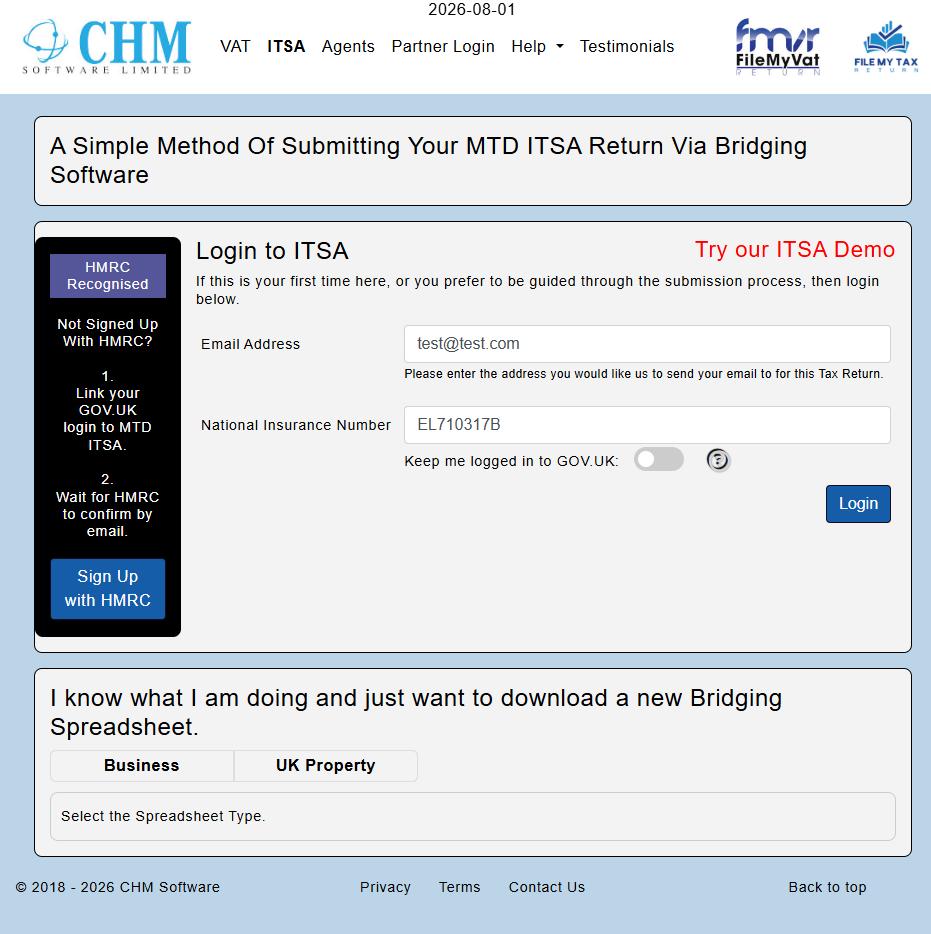
The main ITSA page has 2 options.- Login to ITSA - enter your National Insurance number and email address. You will be prompted to login to your GOV.UK account if needed.
- Download a bridging sheet – if you know what you are doing and just want to get on with linking your figures to the bridging sheet.
The ITSA Business and Obligations Page
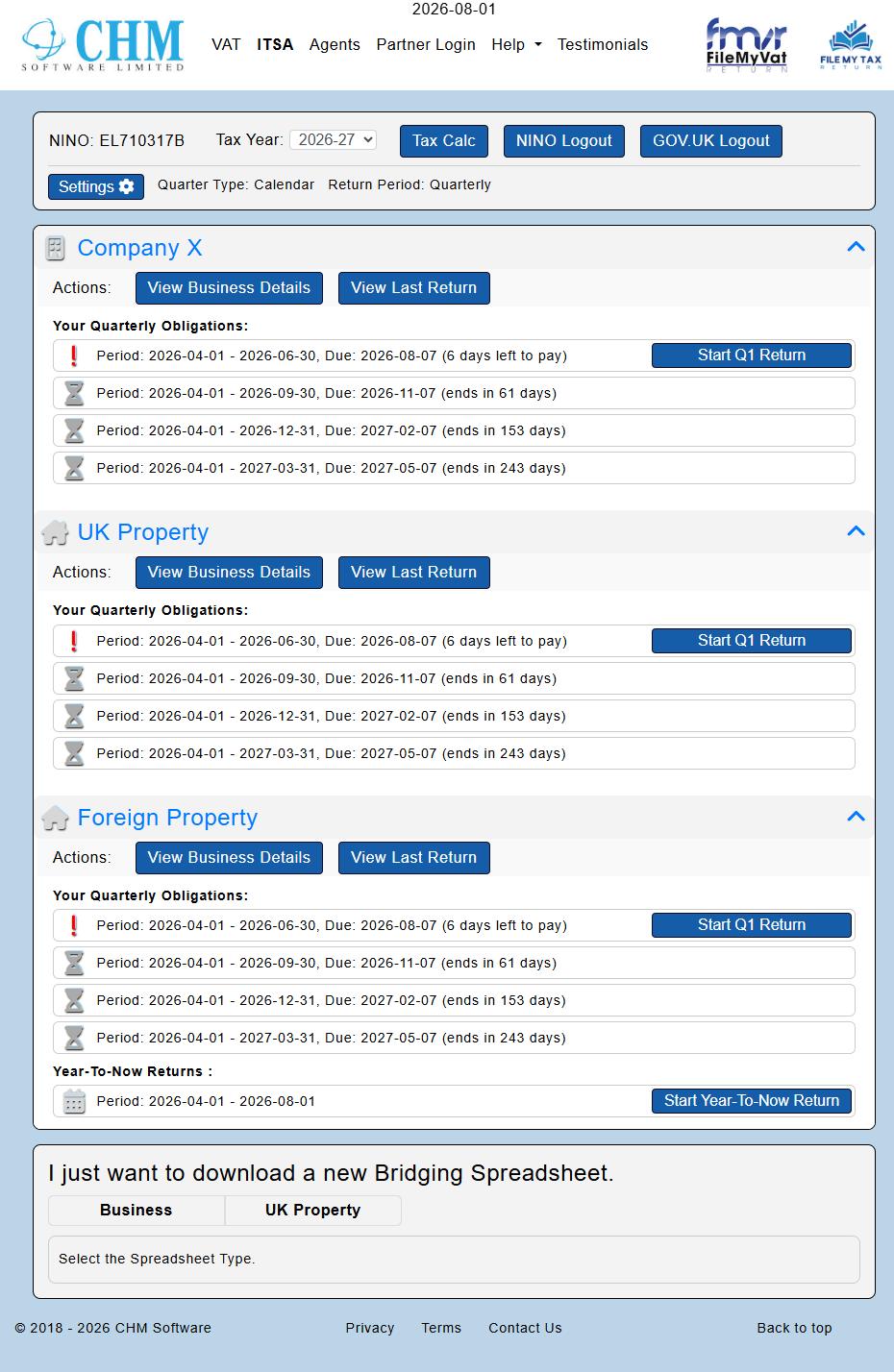
Once logged in with your NINO, you will see a list of your businesses and the obligations HMRC have for you for the selected Tax Year.
On this page you can:-
Choose Settings - choose whether you prefer calendar months or standard (6th to 5th) months and whether you are doing full year returns or summated quarters.
The first time you login, you will be shown the setting page. In theory once set, your preferences will not need changing again. - Start A Return - all OPEN obligations will have a button for you to start that quarter's return.
- View Business Details - all details that HMRC hold.
- View Last Return - see the details of your last return submitted to HMRC. The details are always Tax Year Start to the End Date of the last return submitted.
- Trigger A Tax Calculation - this will show the latest estimate that HMRC can calculate from your returns and other sources.
- Logout - Nino Logout will take you back to the ITSA Login page. GOV.UK Logout will also secure your data. Essential if you are on a shared device.
Start A Return.
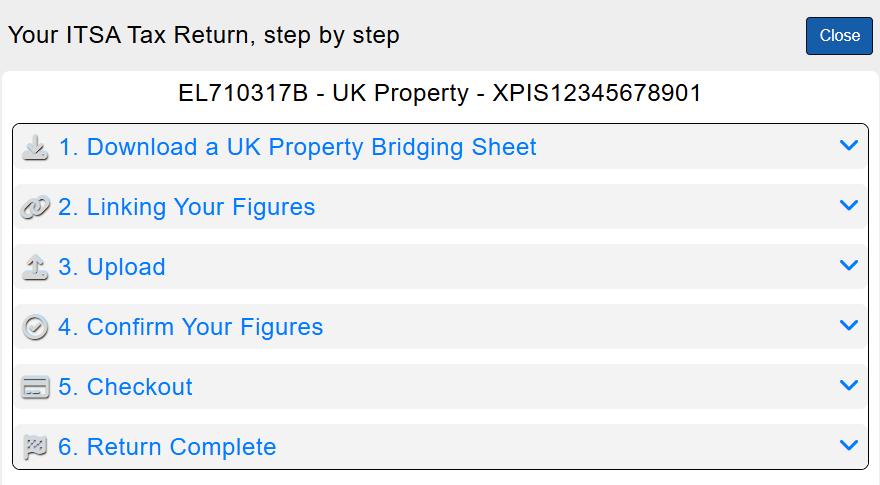
When you click on one of the 'Start Return' buttons, a page will open which guides you through the steps needed.
The page will initialise with the 'Download' step open.
Simply start at the top and work your way to the bottom of the steps.
Each step has a " Click for Help " option which should
get you going if you are not sure what to do.
If you prefer, you can always play with our DEMO system. Everything is the same as live, but using a test NINO and test payments.
Try our ITSA Demo
A downloaded Bridging Sheet.
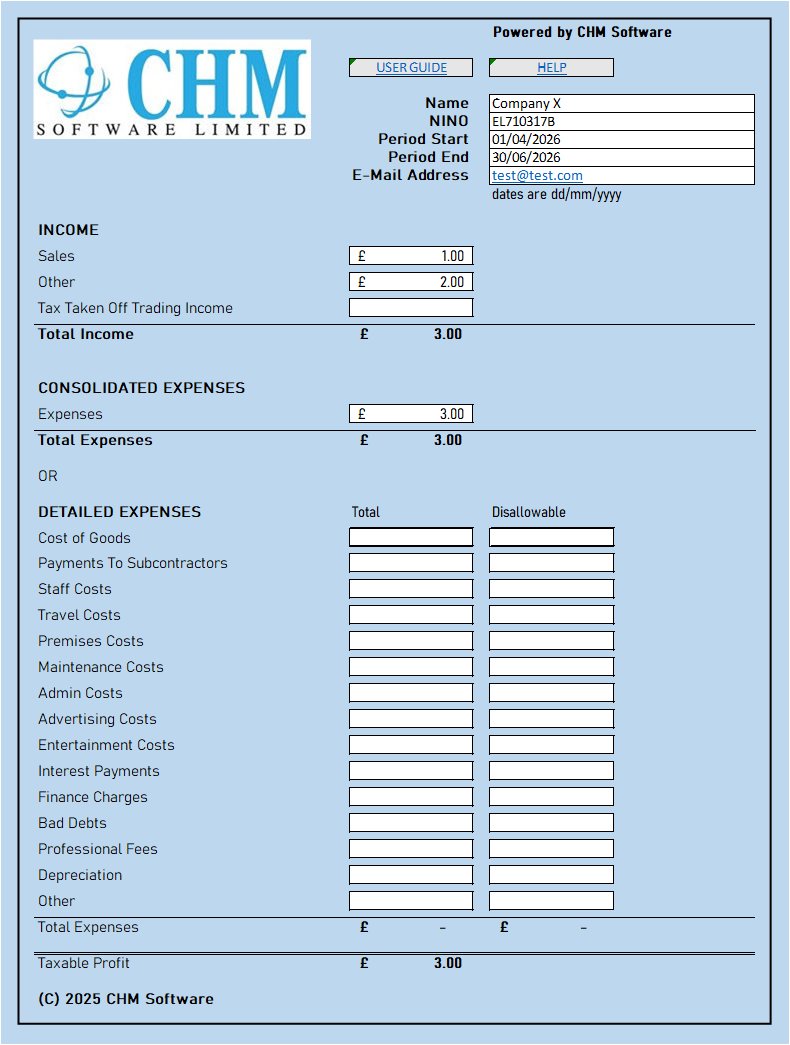
Below is the Upload only Bridging sheet for a self-employment Return.
Start A Return, Step 2. Linking Your Figures.
This step involves open your spreadsheet and our bridging sheet and linking data between the two.
It is explained briefly on the 'Linking Your Figures' page, but here we show it in more detail.
- Open our Bridging Sheet.
-
If you just downloaded a sheet, it should have all the header information filled in for you.
If not, type or link the business name, National Insurance Number, period start date, period end date and your email address.
The email address will be used for your Confirmation email and Receipt for payment. - The actual fields vary according to business type, but all will need digitally linking to your sheet. If your turnover is less than the current VAT threshold, then you can use the single 'consolidated expenses' box, rather than the 'detailed expenses'
-
Click on the 'Sales' box and type = (the equals sign).
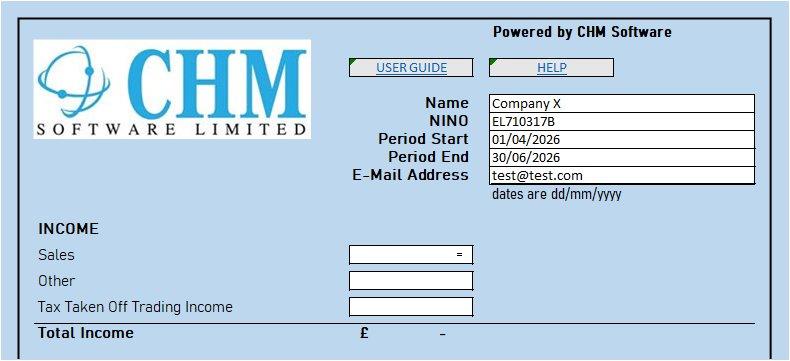
-
Open your accounts spreadsheet containing your calculated period totals for this ITSA period, and find the source cell containing your sales total.
In this case it would be the cell containing £1,950.53 as the Turnover.
Click the source cell and press the ENTER key on your keyboard: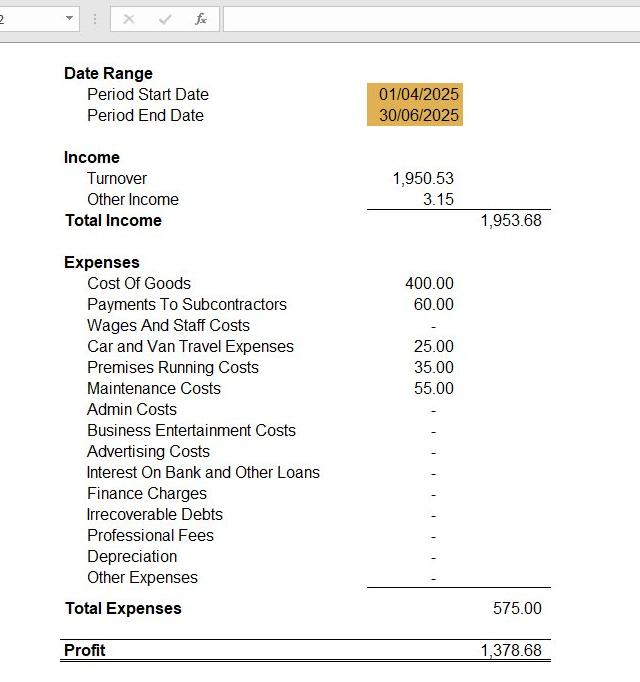
-
Go back to our Bridging Sheet and you will see the value you clicked on has replaced the '=' sign.
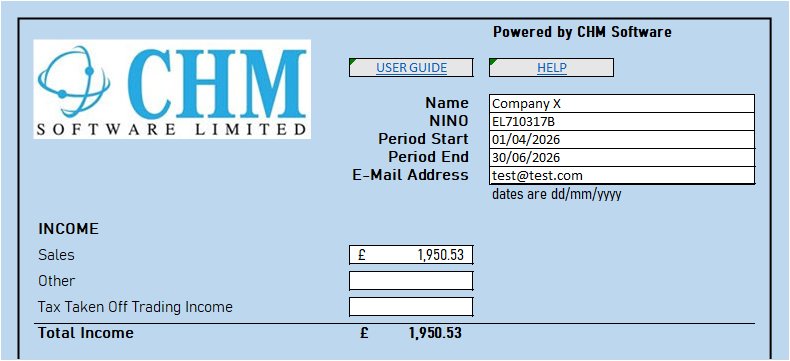
- Repeat for all the other figures required for the return.
- Once completed, save the bridging sheet, return to your browser, and move to the 'Upload' step, ready to select the file you just saved.
- After uploading the bridging sheet, check the figures in our 'Confirm' step and continue with the rest of the steps.
Macro Sheets
Our Macro enabled bridging sheets have all the same fields as the upload sheets, but have an extra 'File My ITSA Return' button
which will send your figures to our website.
They use the same '=' and 'Enter' linking process as explained above for our upload sheets.
They are intended for people who prefer to manage the figures themselves and then click a button to begin the actual submission process.
After you have linked all of your period total figures to the macro sheet, clicking the 'File My ITSA Return' will open your browser
and take you straight to the 'Confirm' step of the submission process.
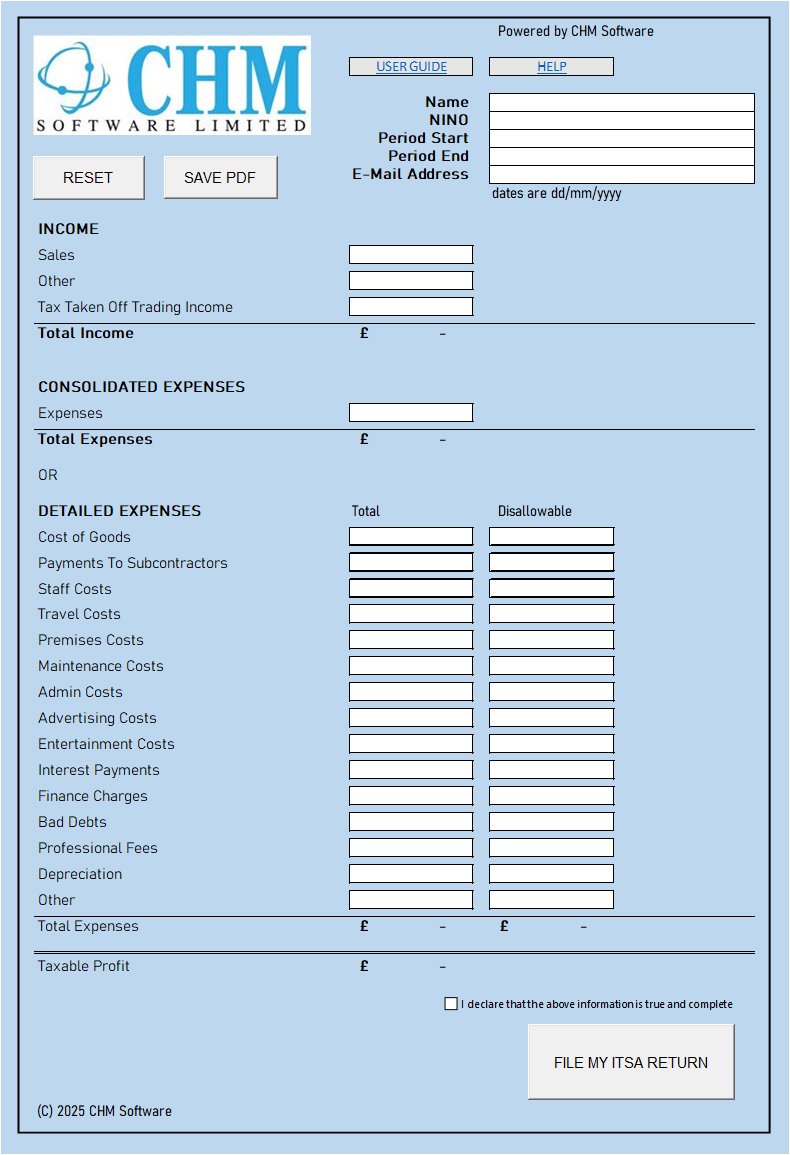
Button functions:
- RESET – Click to clear all the data in the ITSA return.
- SAVE PDF – Click to save the ITSA return as a PDF file.
- USER GUIDE – Click to view this user guide as well as other useful hints tips and MTD updates.
- HELP – Click for more information about the fields and the spreadsheet in general.