How to Embed CHM MTD Bridge into your own Spreadsheet
If you wish to embed the Excel MTD ITSA Bridging Tool into your own spreadsheet, you will need to open both the CHM MTD ITSA Bridging Sheet and the spreadsheet you wish to embed the filing tool in.
Steps to embed the Bridging Tool:
-
Open the Bridging Tool.
-
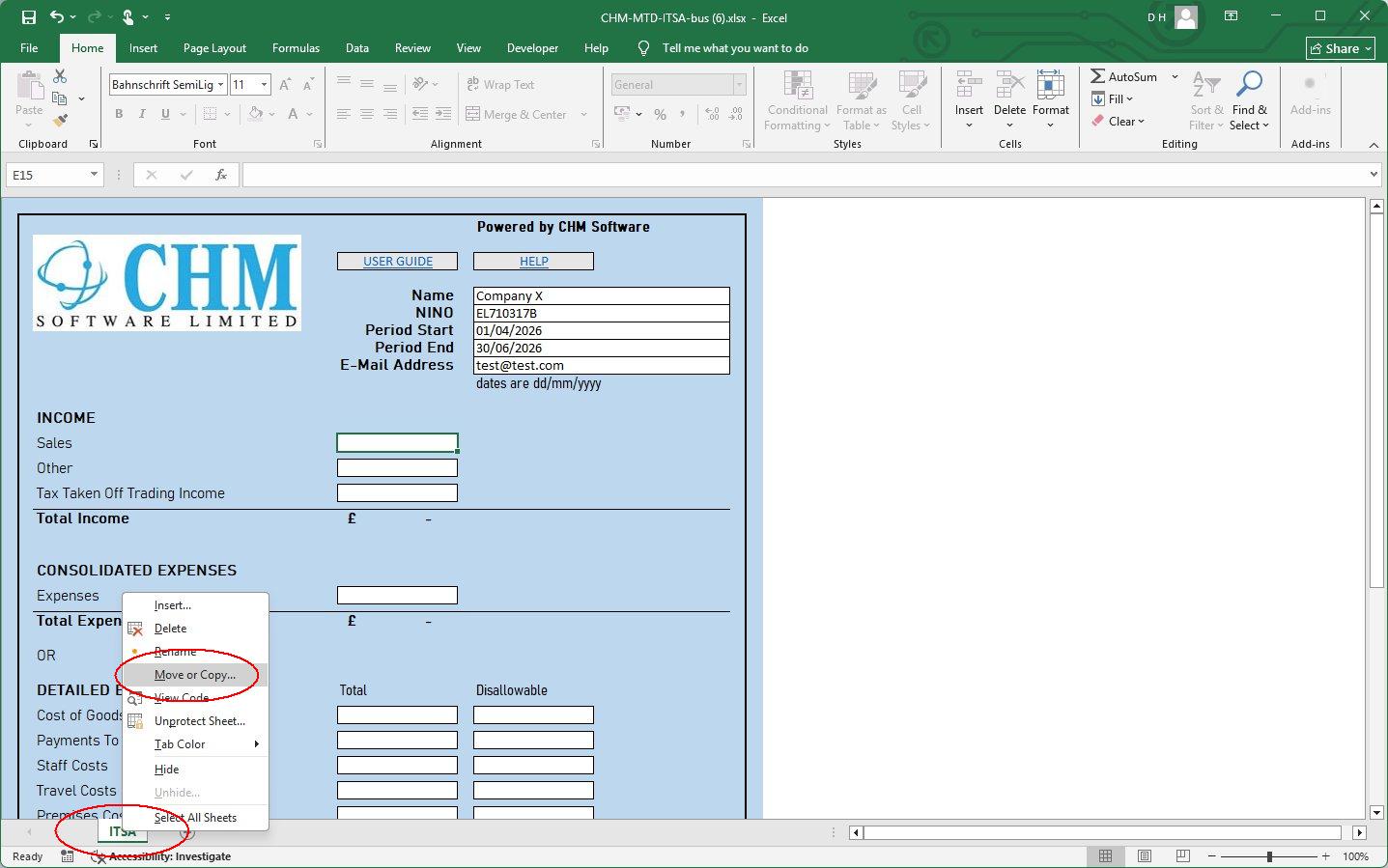
Right click on the ITSA sheet tab and then select 'Move or Copy' from the menu that appears:
-
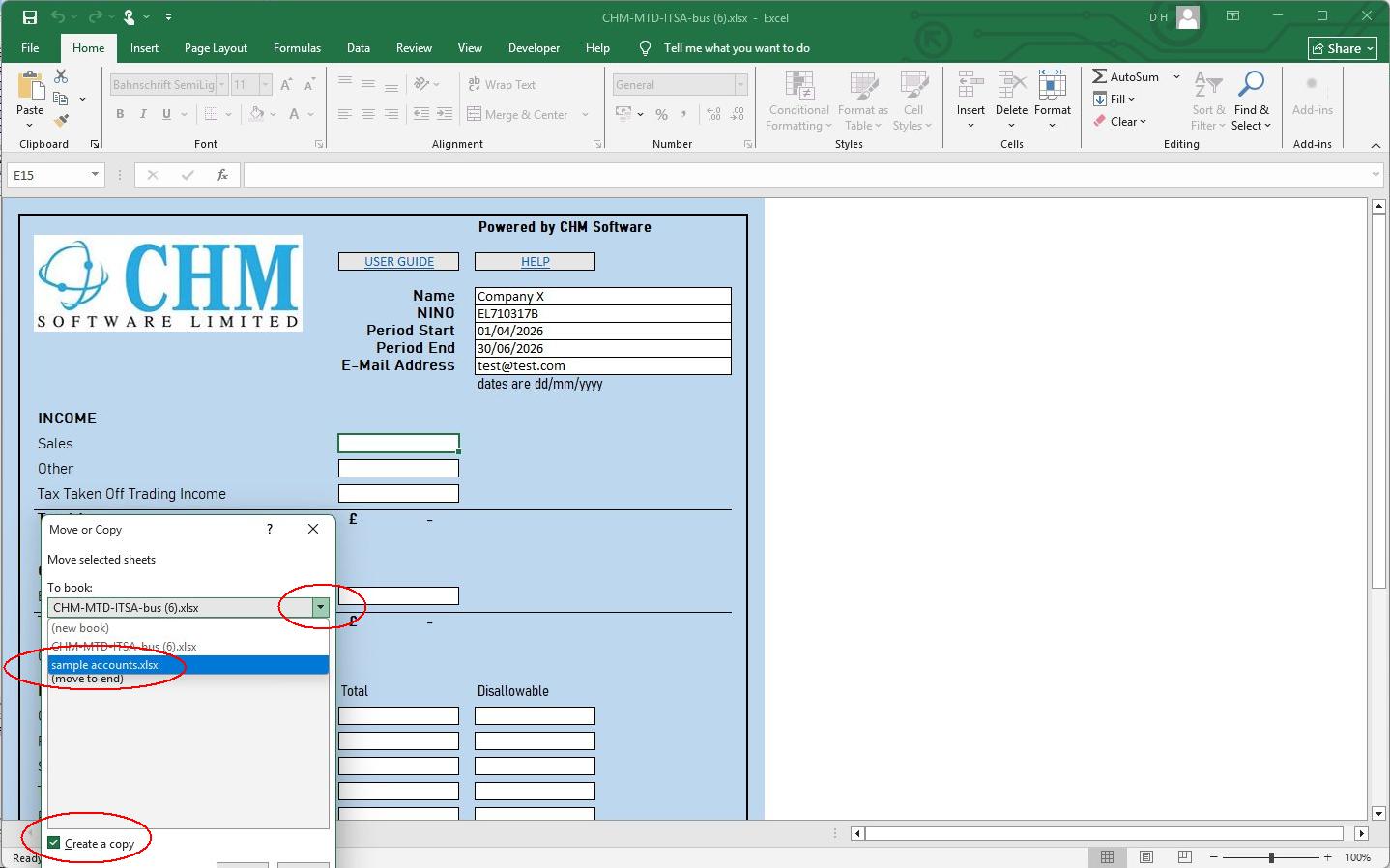
Tick the box 'Create a copy':
Select the 'To book' dropdown and select the workbook you wish to embed the Bridging Tool into:
Note: If your workbook is not in the list, you may need to close your workbook and then from within the Bridging Tool Excel go to File > Open and re-open your workbook.
-
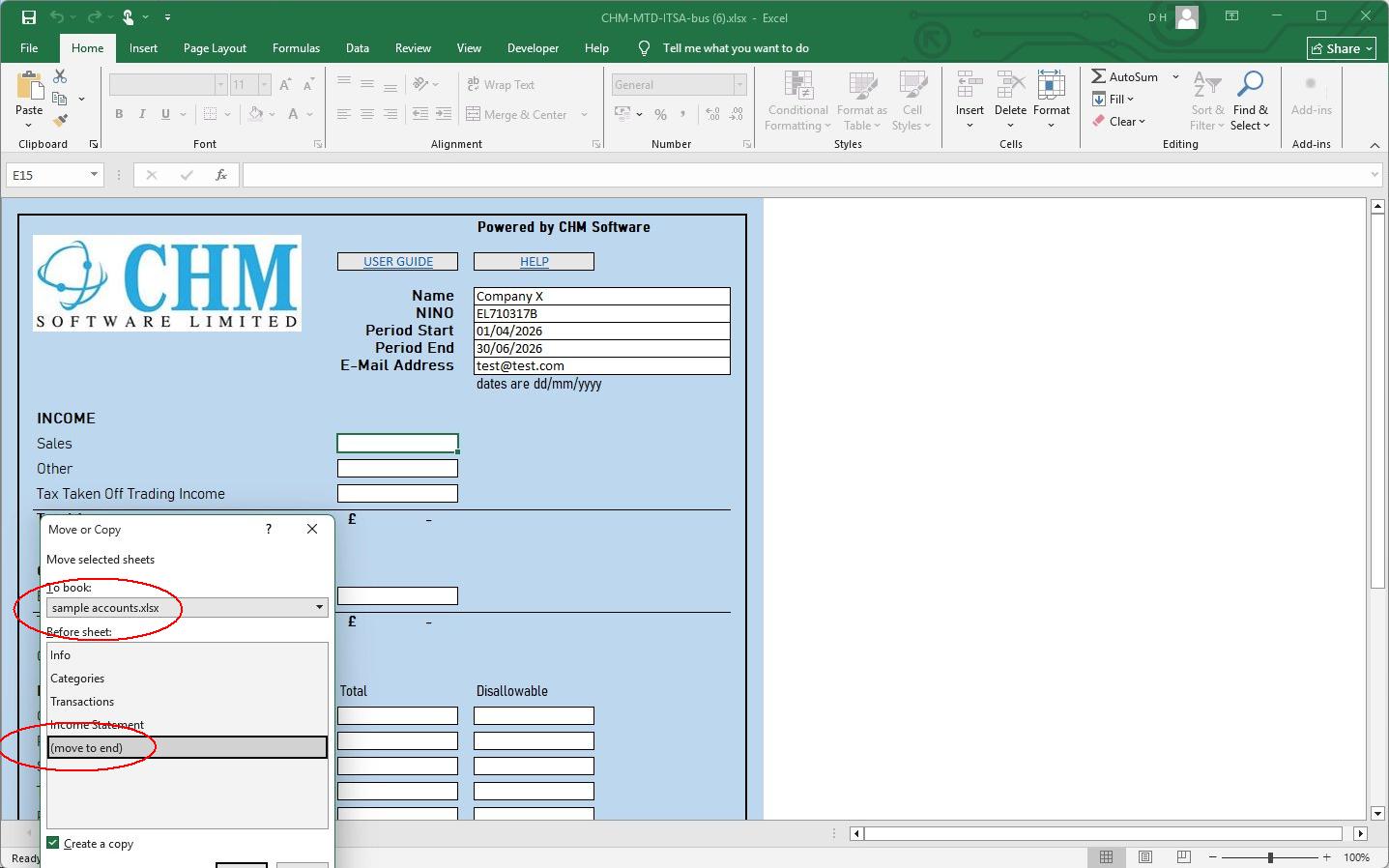
Select where you wish to position the Bridging Tool into your spreadsheet and click OK:
-
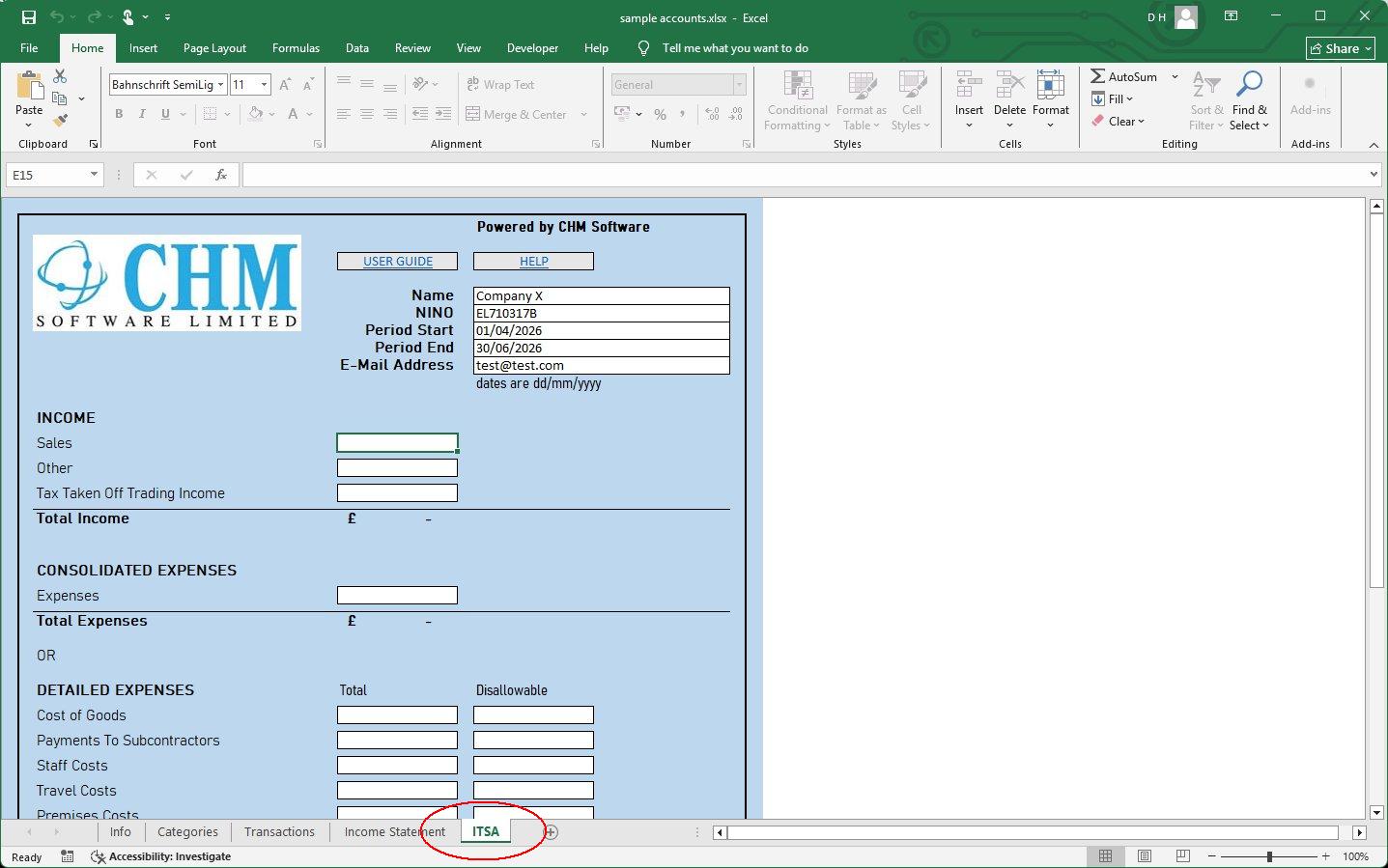
The bridging tool will now be embedded into your spreadsheet, repeat these steps if you wish to
embed more sheets for additional ITSA periods.
-
You will now need to digitally link the Bridging Tool in order to file your VAT returns, follow steps in the User Guide to do this.
-
If you have embedded one of our macro enabled (.xlsm) sheets, you will need to save your workbook as a macro enabled file (*.xlsm),
otherwise Excel will not allow our 'File My ITSA Return' button to function.